How to Take an Image Backup in Windows Server 2012 R2 Operating Systems?
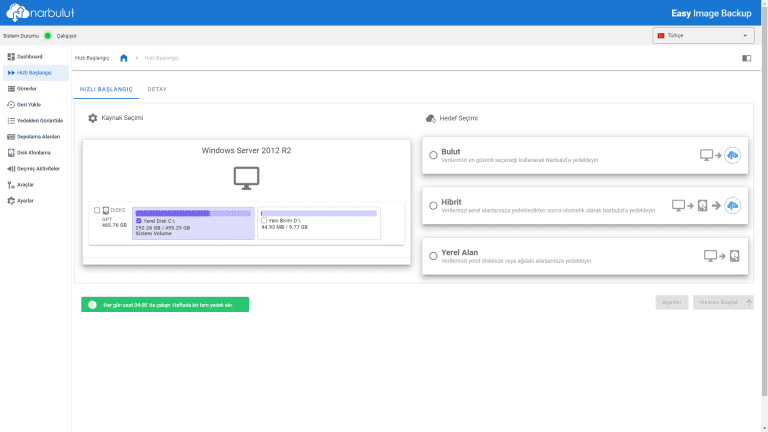
How to Take an Image Backup in Windows Server 2012 R2 Operating Systems?
What is Image Backup?
An image backup is a type of backup that creates a copy of an entire computer or hard drive. This copy contains all data, including the operating system, installed applications, user data and settings. Image backups are used to restore devices to their original state after events that may cause data loss, such as hardware failures, software errors or malware attacks (ransomware/malware).
How to Get an Image Backup with Narbulut?
There are various ways to take an image backup, which may or may not require technical knowledge. In this article, Narbulut’s solution that simplifies and automates image backup Narbulut Easy Image Backup The process of creating an image backup will be discussed.
Creating an Image Backup in 4 Steps with Narbulut Easy Image Backup
1. In Narbulut Easy Image Backup application Quick Start enter the menu.
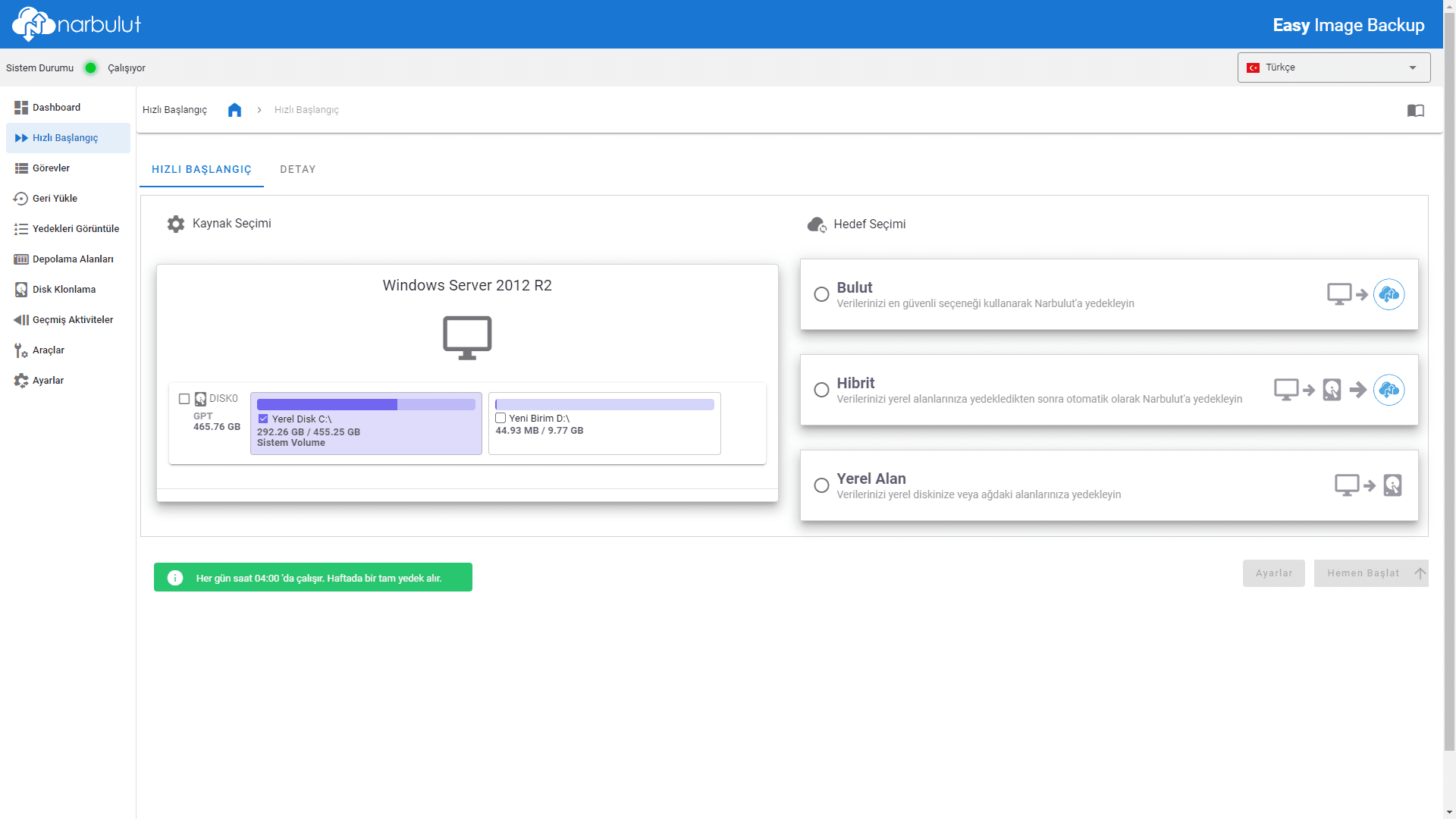
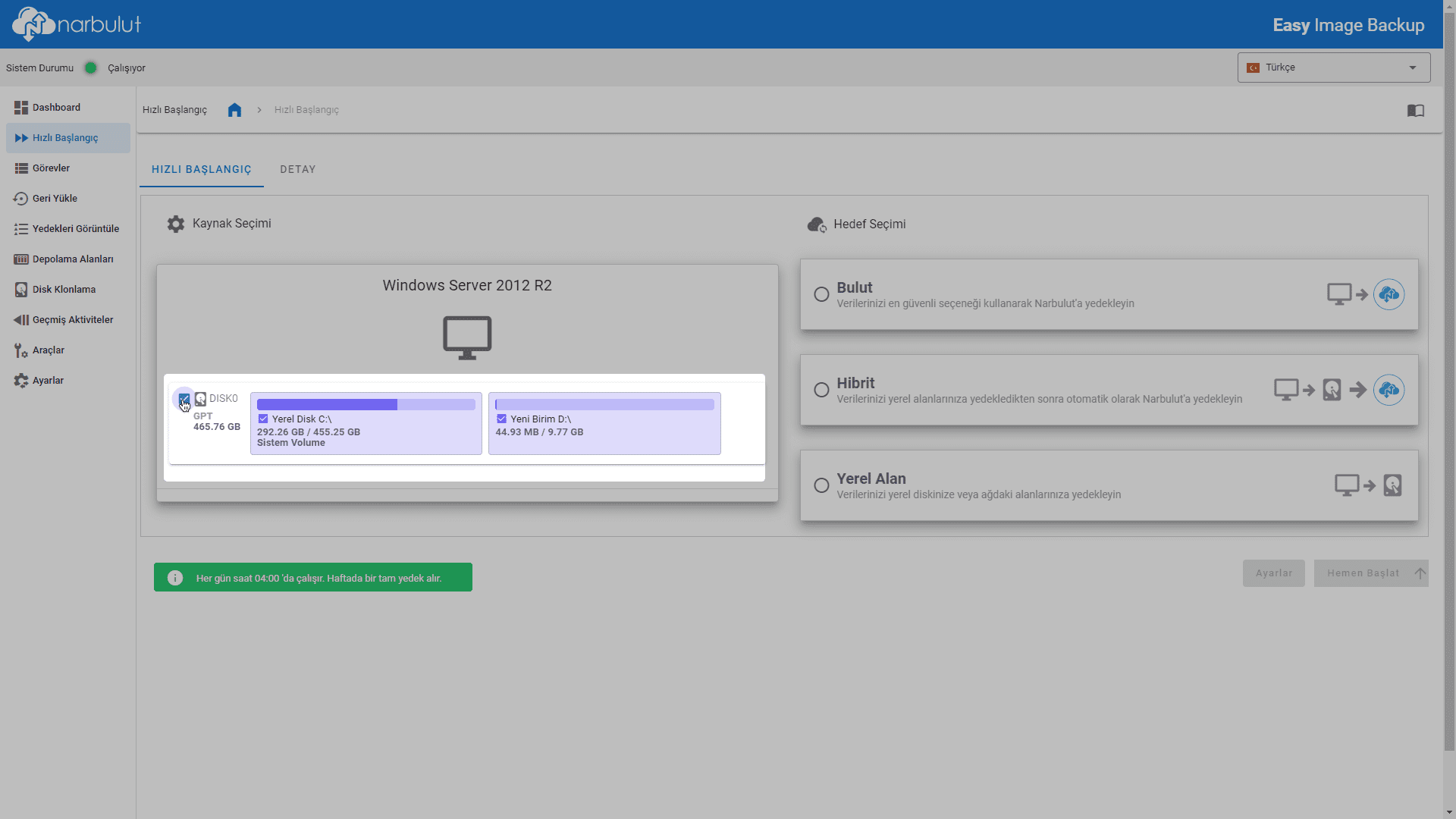
2. Select the disks/volumes for which you want to create an image backup.
3. Determine the target location of the image backup to be created.
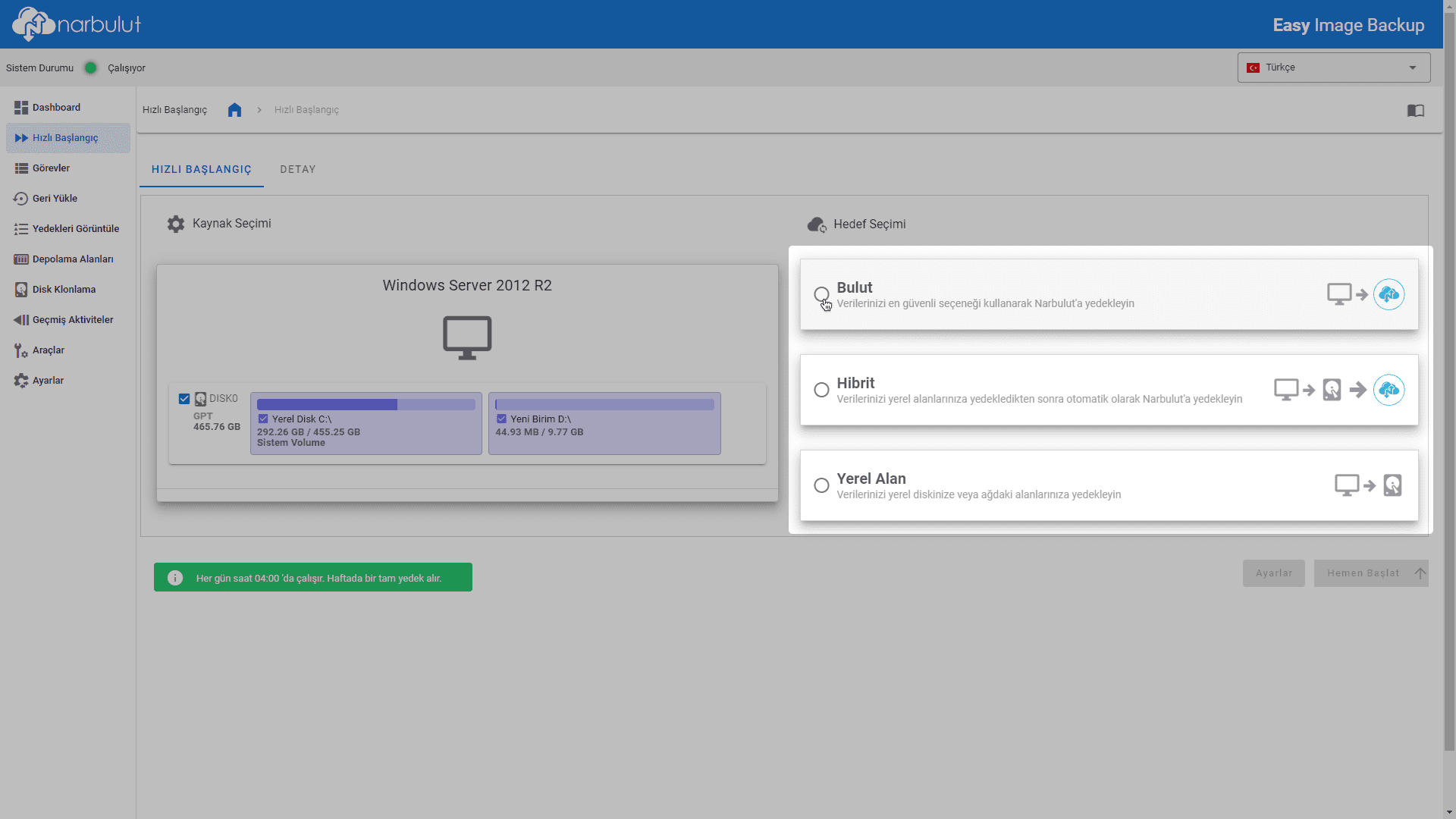
Bulut: The backups taken will be stored in Narbulut data centers.
Hibrit: The backups taken are available both in Narbulut data centers and Storage Areas It will be stored in the local area/network area selected from.
Yerel Alan: Backups taken Storage Areas will be stored in the local area/network area selected from.
If you do not have a local storage area you have previously created hibrit ve yerel alan You will need to create a storage area from the drop-down menu to be able to select targets.
4. Start Now Click the button or next to  Schedule the image backup for a later time by clicking the button.
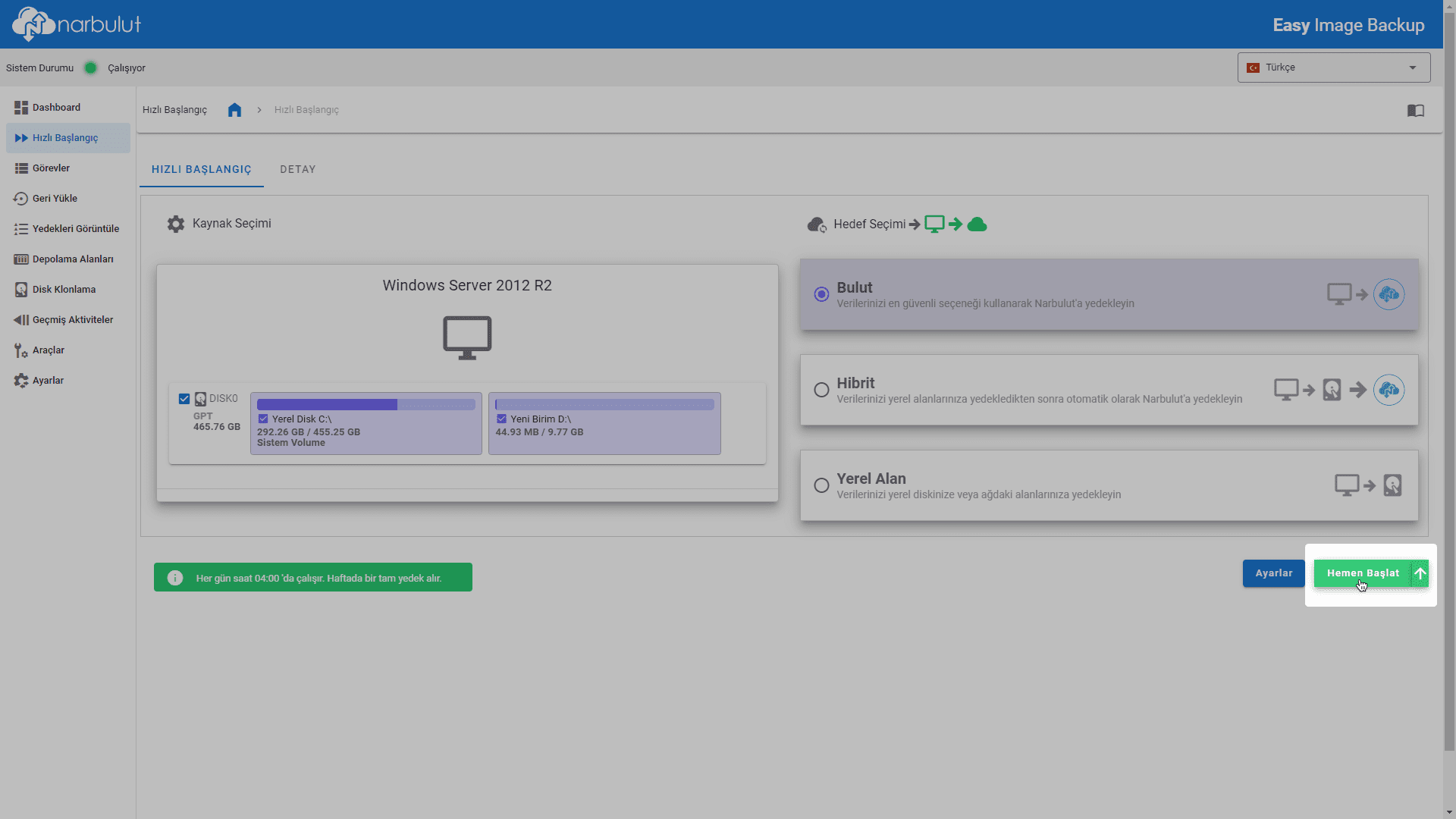
Status of the image backup process Detay You can follow the tab. The transaction you have made will work every day, incremental Creates a backup task that uses the backup method. The first backup taken, regardless of the backup method full It will be a backup.
To customize the task you will create for yourself Ayarlar butonunu veya Quests You can use the menu. To restore the backup you have taken Restore Use the menu. For more detailed information See Narbulut Easy Image Backup Application Getting Started Guide take a look.
Sign Up for a Free Demo!
To benefit from all the features of Narbulut Easy Image Backup application free of charge for 30 days, download the application. indirip Sign up.

